
Colab golden path, for any plan
This page is the short version, written for anyone on any Colab plan. Our own tooling, templates and the full history behind each rule are in Rented GPU windows.
When a job is too big or too slow for our own RTX 5090, we rent a card on Google Colab. Colab charges in prepaid compute units, so a job that runs away costs units nobody planned. Our remote-card speed sweep alone has run about 80 windows this way, up to eight at once and through the night. This is the path every job takes, the guards around it, and a small worked example you can copy.
The unit of work: a window
Section titled “The unit of work: a window”Every job runs as a window:
- one Colab session;
- one job;
- a cap in units;
- a wall in seconds;
- one receipt folder.
A window never holds two studies, and one study never splits across windows. We drive Colab from WSL on Windows through Google’s command-line tool, google-colab-cli (Apache-2.0). Its commands:
colab newopens a session on a chosen card;colab execruns a file on it;colab stopends it;colab sessionslists what is open.
Before you start: the tool supports Linux and macOS only, so on Windows install and run it inside WSL. Install it
with uv tool install google-colab-cli (or pip install google-colab-cli), sign in once, and run colab sessions to
see that it answers. It authenticates with Application Default Credentials by default, or with OAuth.
The cards and their rates (units per hour, measured):
| Card | VRAM | Units/hr |
|---|---|---|
| CPU only | — | 0.08 |
| CPU (high-memory) | — | 0.26 |
| T4 | 16 GB | 1.07 |
| L4 | 24 GB | 1.54 |
| A100 | 40 GB | 5.30 |
| A100 (high-memory) | 80 GB | about 6.77 |
| RTX PRO 6000 Blackwell (“G4”) | 96 GB | 8.90 |
These are the rates we measured on our own plan. On Google’s side, we probed the ceiling once, on 2026-10-23 on the top tier:
- each of the five GPU shapes above (T4, L4, A100 40 GB, A100 80 GB and G4) had its own pool of 3 sessions at once, and CPU a pool of 5;
- a fourth GPU session in any pool was refused, and so was a sixth CPU session;
- the whole account took 20 sessions at once.
The 8 at once is our own limit, not Google’s. We keep it below the ceiling because sessions were lost more often when many ran together.
Which plan you’re on changes the path
Section titled “Which plan you’re on changes the path”Google doesn’t publish which cards each plan gets. It says the GPU and TPU types “vary over time” and that usage limits aren’t published. So here is what Google does say about each plan, and what we measured on the two plans we have used. On any paid plan the golden path below stays the same. What changes is which cards you can ask for, how many at once, and how long a session may run.
Free (no compute units).
- Google says GPU access on the free tier is “heavily restricted”. Notebooks run for at most 12 hours, and machines get the standard memory profile.
- Google’s FAQ also says that a runtime with no positive unit balance may not be run by remote control, or used while bypassing the notebook, and that such a runtime may be terminated without warning.
- So treat the command-line path below as needing a paid plan with a positive balance. On a free account, the same habits still apply inside a browser notebook: run the stub first, and set a wall.
Pay As You Go and Colab Pro (units, standard plan).
- Google says these plans get more compute according to your unit balance. Premium GPUs and high-memory machines come “subject to availability”. In general, notebooks still run for at most 12 hours.
- The tool’s README says its
--high-memflag needs a Colab Pro or Pro+ entitlement, and that L4 and TPU runtimes ignore the flag because they come in one shape only. - What we measured on Colab Pro: A100 40 GB sessions at 5.30 units an hour, CPU sessions at 0.08, and two A100 sessions open at once (we didn’t try for more on Pro). That is enough for the whole path: stub first, then one or two paid windows side by side.
- Size the cap to your balance, not to ours. Google says to expect the backend to terminate if you run out of units.
Colab Pro+.
- Google says Pro+ can run code continuously for up to 24 hours, given enough units.
- We haven’t measured this tier ourselves.
Google AI plans that include Colab. Google’s plan page lists a monthly grant of Colab units for each plan, with more access to accelerators and longer runtimes at each step up:
- Google AI Plus: 50 units.
- Google AI Pro: 200 units, with “expanded” access.
- Google AI Ultra: the page’s comparison table shows 1,000 units for its 5x level and 2,000 for its 20x level, while the plan text says 2,000.
We have measured only the top of these.
Our top tier (Google AI Ultra, what we run on now).
- Measured: the larger cards appeared (RTX PRO 6000 96 GB and A100 80 GB), with three sessions per card type and 20 at once account-wide.
- H100 has been “Service Unavailable” every time we asked, including on this tier.
- Everything in the rate table above came from this plan, and most readers won’t have it. The two big cards may not be open to you, and the path doesn’t need them.
One rule for every plan: read your own rates with colab usage before you set a cap. Then book each window from
your own rate, not ours.
We price per job (hours × rate), not per hour. A faster card at a higher rate can be the cheaper way to finish a job.
The golden path
Section titled “The golden path”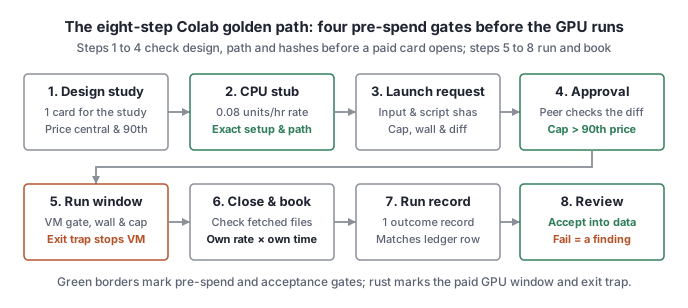
-
Design the study first. Write down the question it answers and the card it uses. The card never changes partway through a study, because text and timings differ across cards and results from two cards are never pooled. Price the study at the central estimate and at the 90th percentile. A second model reviews the design before any spend.
-
Run a CPU stub on the exact path. The stub is the same launcher, the same inputs and the same pinned code, on a CPU session, with a tiny cap. The model calls are stand-ins, and only these lines change: the stub flag, the card, the cap and the model binary. The stub has to reach every step the paid run will, including every install and unpack step: a step the stub skips is a step that can fail at GPU prices. It passes or fails on the path itself (pins, hashes, uploads, results fetched back, session stopped), never on the stand-in answers.
-
Write the launch request. It lists:
- the launcher file and its sha256, checked to be UTF-8 or ASCII with no carriage returns;
- the card, the cap and the margin, and the wall;
- every input and its sha256;
- the projected cost, and the acceptance list;
- a diff against the last approved launcher, or against the stub.
-
Approval. Someone other than the author checks:
- the sha matches and the diff is exactly what the request describes;
- the cap sits above the 90th-percentile price, and the budget holds at full caps;
- the wall sits under the job’s own timeout.
The most a window can spend is the smaller of its cap and wall × rate, and the request says which one binds. Windows inside an already-approved plan, cap and budget go without a fresh ask. Anything new in kind comes back to approval: a new card, a new model, a new launcher, or a cap above the plan.
-
Run. One command starts the launcher, and the launcher does everything else:
- checks every input’s sha;
- opens the session;
- checks the card it was given (name, VRAM, disk and download speed), and retries a bad VM;
- uploads the inputs;
- runs the job under the wall while a watcher checks the cap;
- fetches the results;
- stops its own session in an exit trap, so the session closes on the way out whether the job passed, failed or was cut.
-
Close and book. Check the run against its acceptance list, on the files fetched back. Confirm the session is gone from
colab sessions. Then book the window at its own rate × its own session time, open to stop.- Never use the account’s balance drop: other windows share it.
- Example: an A100 window of 101.3 minutes is booked 5.30 × 101.3 / 60 = 8.95 units.
-
Write the run record and check it. Each window gets one outcome record: the venue, the card, the cost and its basis, the cap, the outcome (
results,partial,test,tooling-fault,lost-vm, …) and one line on what it showed. A checker then confirms the record matches the ledger row. -
Review. Whoever owns the study accepts or rejects the results. Only accepted windows become data. A failure is booked and written up as a finding, never retried silently.
The guards, and the windows that proved them
Section titled “The guards, and the windows that proved them”- The cap. A watcher reads the window’s spend about once a minute and halts at cap minus margin. It cuts the step in
flight, fetches what was written and stops the session.
- We proved it on a CPU stub with a deliberately tiny cap, 0.006 with a margin of 0.001. It halted 254 seconds in, inside the window we predicted for it.
- Two windows were cut early by false cap reads, from two different faults in the watcher.
- First, it multiplied the account-wide rate by the window’s time, so an L4 running beside an A100 was charged the A100’s rate too.
- Once that was fixed, it still read the account’s balance drop, which holds every window’s spend.
- The watcher now charges each window its own rate times its own runtime.
- The wall. The job’s own deadline, plus a short grace for fetching results. We proved it on a stub with a 420 s wall: it halted, fetched and stopped the session about 404 s after launch.
- A host fault stops the window. A window that throws “illegal memory access”, an “Xid” error or “unspecified
launch failure” is on a broken card, not out of memory, so it stops at once.
- In one window every cell failed this way, and an older harness had logged them as out-of-memory. Two windows running the same model on the same card type at the same time produced real rows.
- That window ran to its end before anyone saw it. It was booked, marked as no valid data, and re-run on a fresh session, and it is why the stop-on-host-fault rule exists.
- A real out-of-memory is a result (“this doesn’t fit this card”), and it stays in the table.
- A cut window is partial, not a do-over.
- One L4 window ran a 31B model at about a third of the A100’s speed and hit its wall with 18 of 21 cells done.
- The 3 missing cells are recorded as “not reached at the wall”, not as failures, and the window was not re-run.
- We re-run only when nothing usable came back: a bad host, or a failed download.
- Keep walls short. Ours are four hours or less, well under any plan’s limit.
- Colab does drop VMs. We know of eight GPU sessions that lost their VM partway through a job:
- On 2026-10-17, one about ten minutes in, during a model download.
- On the same day, one at 79 minutes, with no other session running.
- On 2026-10-23, three of that day’s six long A100 windows, between about 1 h 15 m and 3 h 15 m in. Each was lost while 3 or 4 GPU sessions were live, but those were also the same few hours of the day, so the two causes can’t be told apart.
- On 2026-10-29, three of four A100 sessions in the same region, all within about four minutes of each other (the fourth in that region, and sessions in two other regions, kept running).
- Two more, on 2026-10-17, never got a working connection to the VM at all, so no job ran. We don’t count them as losses partway through a job.
- That’s thin data and it guarantees nothing, but it’s part of why we cap ourselves at 8 sessions at once.
- Colab does drop VMs. We know of eight GPU sessions that lost their VM partway through a job:
- A failed open may still bill. When
colab newfails or times out on your side, Google may still have assigned the VM. It then shows incolab sessionsas an unnamed[?]entry. Stop-by-name can’t reach it, and it bills until Colab’s own cleanup ends it.- So after any failed or timed-out
colab new, list the sessions yourself, look for an unnamed entry of the hardware you asked for, and watch your balance. - We’ve seen this twice. The one we caught is booked like any other window, and a fix to our launcher is queued.
- So after any failed or timed-out
- A dropped window resumes, if its checkpoints got home. Every call is checkpointed as it runs.
- When the checkpoints had reached our machine before the loss, the next window replayed them and ran only what was missing.
- In the 2026-10-29 loss they lived only on the VM, so the 675 calls it had made were lost.
- So we’re building a periodic copy-back of the call journal into our launcher, so that a lost VM costs minutes, not the window.
- Secrets stay out of the receipts. Our launchers never put a token on a command line, into
--envor into a log. The rig writes the token to an owner-only file, uploads it to the VM’s RAM-backed/dev/shmand deletes its own copy; the job reads it once and deletes it. The command-line tool itself prints a short-lived runtime token in the URL when an upload fails, so any log that keeps its output is scrubbed first. Then, before any receipt is committed, a scan checks that no token or session URL appears.
A worked example: the stub that let a sweep start
Section titled “A worked example: the stub that let a sweep start”Our remote-card speed sweep began with three CPU stubs, each with a cap of 0.07 units:
| Stub | Ran | What happened | Booked |
|---|---|---|---|
| 1 | 77 s | Failed at setup: the CPU image’s Python was newer than our tool supported, and the setup script only checked the version | about 0.002 |
| 2 | about 100 s | Setup passed, then failed: the launcher called a colab exec option that doesn’t exist |
about 0.002 |
| 3 | about 584 s | Passed all seven acceptance items (below) | 0.013 |
Stub 3’s acceptance items:
- setup returned 0 at every step;
- the tool installed, and was byte-checked against its tag;
- three self-checks passed;
- six runs refused cleanly, each with “no NVIDIA GPU” and no tracebacks;
- four models were downloaded, digest-checked and deleted;
- the result archive was fetched back;
- the exit trap stopped the session, the token scan was clean, and no sessions were left open.
Together the three stubs cost less than two hundredths of a unit. Each failure would have cost the same on a paid card, plus the card’s time. The first GPU window after stub 3 then found a packaging fault: a data file missing from our tool’s wheel. It cost 0.10 units on a T4. The big cards started only after the rest of the T4 rungs had passed.
What we’d tell anyone starting
Section titled “What we’d tell anyone starting”- Make the stub do every step the real run does. Most of our failures were in setup, not in the model.
- Book by the window’s own rate and time, and keep one ledger row per window, failures included.
- Put a cap and a wall on every window, and test each guard once on a stub where you can see it fire.
- Trust only the files you fetched back. A session’s “busy” status says nothing about whether the job is alive.